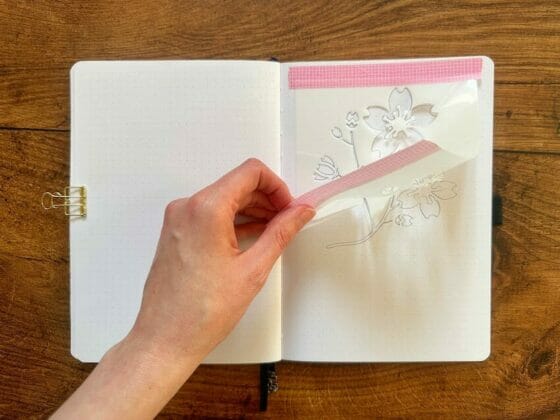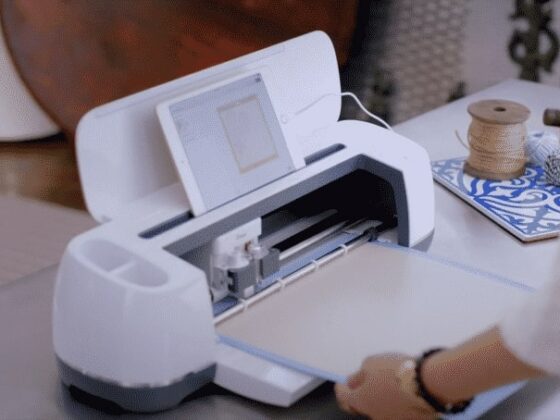
Cricut is a versatile die-cutting machine that easily cuts through any material, including thin metal sheets, leather, wood, etc. However, as you’d know, working with such materials generally requires intricate designs and patterns.
And unfortunately, a small-size display (e.g., smartphones) doesn’t come in handy here. You can’t properly view the images, access the necessary Cricut tools (that only higher-spec devices support), import outside designs, etc.
Thus, I recommend using a laptop as a communication medium with your Cricut Maker.
Do you need help with the best laptop for Cricut Maker? Read this piece as I review the top 5 models for every Cricut machine and budget.
Related: Best Sticker Papers For Cricut – 5 Options And Buying Guide
Do I Need A Laptop For A Cricut?
If you ask me if a laptop is necessary for a Cricut machine, the answer is no. You don’t need a laptop to use your Cricut, with a regular Android or iOS smartphone being enough to access the Design Space software.
Remember, Cricut Design Space runs smoothly on all platforms/devices – Windows, Mac, iOS, and Android.
However, a laptop might be a good choice if:
- You want a better computing experience on a large display, and
- You require Cricut’s more advanced features, such as Offset, Foil blade, and kerning, for your projects. Smaller devices do not support most Cricut advanced features with lower specs.
If you’re sure of investing in a laptop for your Cricut, read the following buying guide for the best deal.
Related: How To Unweld On Cricut – Follow These Quick Steps
What Features Should A User Look For When Choosing A Laptop For Cricut Maker?
The following are some essential things your laptop must have to run Cricut smoothly.
-
Operating System
The first thing to decide is the operating system for your laptop. Since Cricut Design Space is entirely compatible with both Windows and macOS, you can choose any as per your budget and preferences.
Note: Make sure to have the latest OS (Windows & macOS), as some Cricut features don’t work on older versions. For example, Offset doesn’t work on Windows 8 or lower.
Related: How To Make Business Cards On Cricut? The Complete Guide
-
CPU
Coming to the CPU, it’s ideal to go for Intel Dual Core or an equivalent AMD processor. Why? You’d get better performance every time, irrespective of the number of Cricut projects running simultaneously.
Plus, complex Cricut projects are most demanding in terms of processing speed. Thus, a Dual Core processor is recommended—for example, Intel Core i5 or AMD Ryzen 5.
-
GPU
Your selected laptop must have decent graphics capabilities to function correctly with the die-cutting machine. The more the GBs (2GB, 4GB, etc.), the better quality lines you’ll be able to cut out.
-
RAM
In terms of RAM, even Cricut recommends a minimum of 4GB. With this, you can expect high speed, no lags, and swift performance even while dealing with several software simultaneously, including the Design Space.
-
Resolution
A high-resolution display is the best choice to get the most precise view of your designs over Design Space. Cricut recommends 1024px x 768px screen resolution, though you can opt for anything higher than this if your pocket allows.
Related: What Can I Make With A Cricut Machine? 15 Ideas For All Levels
-
Weight/Portability
Laptops can be lightweight and heavy as well. And the one you choose depends on the purpose the laptop will be used for. For Cricut, you need not go for a heavy model since most manufacturers also offer the same loadings in lightweight models.
A lightweight laptop is also easy to carry and store. Ideally, most lightweight laptops weigh 3 pounds to 5 pounds.
-
Ports/Connectivity
To establish seamless connectivity between your laptop and the Cricut machine, USB port(s), HDMI port(s), or Bluetooth is necessary.
Typically, USB Type-C or Thunderbolt ports are enough. However, having built-in Bluetooth capability is also worth it. If my USB cable poses any issues, I resort to Bluetooth and vice-versa.
Related: How to Engrave with Cricut Maker? Acrylic, Wood, Metal
Top 5 Laptops For Cricut Maker In 2023 – Reviewed
Let’s now look at the most well-built laptops for all models of the Cricut machine.
Best Overall Laptop For Cricut Maker
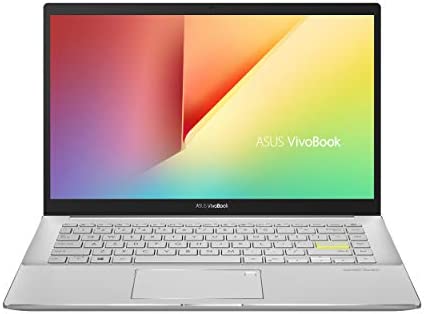
ASUS VivoBook S14 S433

Specifications
- Operating System: Windows 10
- CPU: Intel Core i5-1135G7
- RAM: 8GB
- Connectivity: Thunderbolt 3 via USB Type-C, USB 3.2 Type-A (Gen 1), USB 2.0, HDMI, and Gig Plus Wi-Fi 6 (802.11ax)
- Display: 14-inch, 1920×1080 pixels
Available in two colors – Dreamy White & Indie Black, this ASUS VivoBook S14 is loaded with the 11th generation Intel Core i5-1135G7 Quad Core Processor. Thus, VivoBook S14 supports all power-intensive Cricut applications, including Adobe Illustrator, Adobe Photoshop, etc.
It features a 14-inch Full High Definition (FHD) display with an impressive 1920×1080 pixel resolution for a clear view of your Cricut designs and images. No more blurred lines or uneven focus!
If you wish to carry your laptop to your Cricut classes, this laptop’s 3.1 lb weight and mere 0.62″ thickness is praise-worthy. Added to this is the decent battery life of 10+ hours per full charge. So, no worries about power outlets or low charges while working on time-taking projects.
Although ASUS VivoBook S14 comes with Windows 10, you can upgrade it to Windows 11 for free to access more advanced features of Cricut Maker (or other models.)
Are you someone like me who loves internal storage more than external resources, like cloud storage? If so, you’d feel good about the laptop’s 8GB DDR4 RAM. That’s enough to store all your valuable designs/projects in one place.
Lastly, the laptop has a wide range of input ports, such as USB Type-C, USB 3.2 Type-A (Gen 1), USB 2.0, and HDMI, for seamless file transfer from your smartphone or other devices.
Pros
- 85% screen-to-body ratio for a broader view of Cricut Design Space
- High transfer speed-enabled ports
- Supports all standard Cricut machines
Cons
- No Bluetooth
Check the ASUS VivoBook S14’s latest prices on Amazon
Best Premium Laptop For Cricut Maker
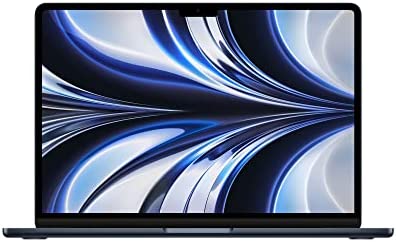
2023 Apple MacBook Air Laptop With M2 Chip
Specifications
- Operating System: macOS
- CPU: 8-core CPU (Apple M2 chip)
- RAM: 8GB
- Connectivity: MagSafe charging port, 2 Thunderbolt ports, and 1 headphone jack
- Display: 13.6″ Liquid Retina Display
The 2023 Apple MacBook Air boasts better performance than its predecessor due to the former’s next-gen M2 chip, which also brings exceptional power efficiency, whisper-quiet operation, and a long-lived battery.
Unlike other laptops, you get an excellent 18 hours of battery in the MacBook Air 2023. Thus, you can work on Cricut anywhere you want without bothering about power sockets.
Thanks to the 13.6″ Liquid Retina display that supports over 1 billion colors, 500 nits of brightness, P3 wide color, and True Tone tech, view your Cricut designs from any angle and notice every sharp detail.
With 8GB RAM and 24GB of unified memory (expandable up to 2TB), you never feel short of storage space for Cricut apps, images, etc.
The laptop weighs 2.7 pounds and is 0.44″ thick for great portability and storage.
If something is lacking here, it’s the connecting port variety. Although the 2 Thunderbolt ports are pretty speedy, an adapter might be needed to connect devices that don’t support USB-C. For example, your smartphone or printer.
Pros
- Thinner and lighter design for portability
- Industry’s best battery life
- Whisper-quiet operation
Cons
- Few ports
Check the 2023 Apple MacBook Air’s latest prices on Amazon
Best Laptop For Cricut Maker Under $500
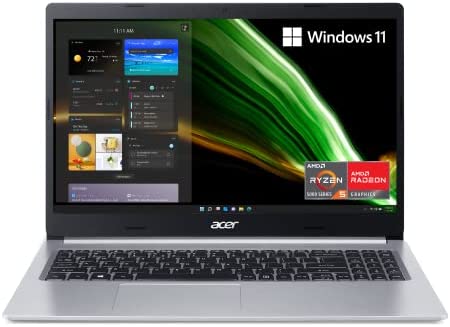
Acer Aspire 5 A515-45-R74Z Slim Laptop
Specifications
- Operating System: Windows 11
- CPU: AMD Ryzen 5 5500U Hexa-Core Mobile Processor
- RAM: 8GB
- Connectivity: 2 USB 3.2 Gen 1 Ports, 1 USB 2.0 Port, 1 HDMI 2.0 Port
- Display: 15.6″ Full HD IPS Display
Probably the best laptop for Cricut Maker under $500, the Acer Aspire 5 is a beast with the latest AMD Ryzen 5000 Series mobile processor that promises high performance regardless of anything.
Note: Besides Cricut Maker, this particular laptop pairs well with Cricut Explore Air, Cricut Maker 3, and more.
With built-in Radeon Graphics, you can also indulge in some gaming to refresh your mind after spending a good time working on Cricut. Don’t fret about charging the device repeatedly with 11 hours of battery life capable of handling both simultaneously!
Despite its meager price tag, you get a 15.6″ FHD display due to Acer’s narrow-bezel design to create, edit, and view clear Cricut designs without many eye movements. Not to forget Acer Color Intelligence and BlueLightShield technologies that take care of the color combinations when dealing with intricate Cricut formats.
Ditch external storage options with Aspire’s 8GB onboard memory (expandable), sufficient for storing all your design resources and storage-intensive applications.
To conclude, you get a variety of connecting ports, such as USB Type-C, 2 x USB 3.2, HDMI, and more, to connect all the required peripherals with the laptop. Among these, I like the speedy USB Type-C port.
Pros
- All-purpose laptop
- Powerful enough to seamlessly run all design software
- Better color clarity
Cons
- Built quality is not tough
Check the Acer Aspire 5 A515-45-R74Z Slim’s latest prices on Amazon
Cheapest Laptop For Cricut Maker
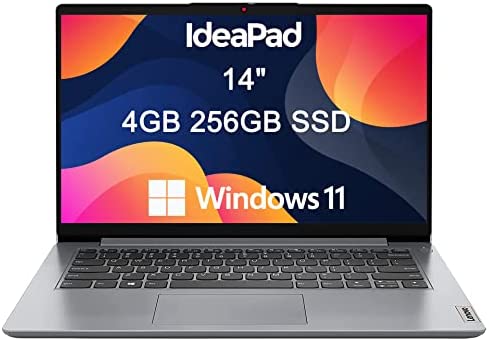
2023 Lenovo Ideapad 1i 14″ HD
Specifications
- Operating System: Windows 11
- CPU: Intel Dual-Core Celeron N4020
- RAM: 4GB
- Connectivity: USB-A 2.0, USB-A 3.2, USB-C 3.2, HDMI
- Display: 14″ HD Anti-Glare Screen
If you’re new to Cricut and don’t want to spend heavily on a laptop, I recommend this entry-level and light workload-compatible Lenovo Ideapad 1i. It almost covers all the bases and won’t disappoint you.
It has a 14″ HD anti-glare display with narrow bezels for a clear view of the Design Space or any design software you work on. Despite not costing much, it has a high-capacity battery that delivers 10 hours of non-stop productivity using Cricut.
The Ideapad 1i is packed with the Intel Celeron N4020 processor with integrated Intel UHD Graphics 600. Thus, besides designers, this slim laptop is also a good deal for gamers.
Regarding the available storage, it’s 4GB DDR4 2400MHz unified memory and 256GB PCIe NVMe M.2 SSD. Hence, rest assured of sufficient space to install all the necessary Cricut software and design resources.
If you want to import images or patterns from outside, you can employ any USB or HDMI ports. But mind you, the USB-C 3.2 Gen 1 port is for data transfer only. In case of issues with the wired connections, I suggest using the laptop’s Bluetooth 5.1 feature for the transfer.
Pros
- Super inexpensive model
- High screen resolution with anti-glare for a clear view
- Wide variety of connecting ports
Cons
- Average battery life
Check the 2023 Lenovo Ideapad 1i 14″ HD’s latest prices on Amazon
Best Laptop For Cricut Explore Air 2
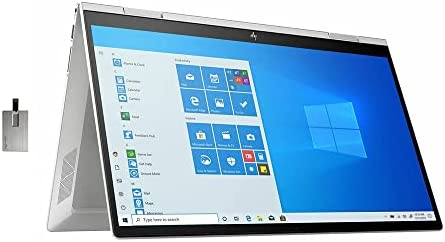
2023 HP Envy X360 2-In-1 15.6″ FHD Touchscreen Laptop
Specifications
- Operating System: Windows 11
- CPU: 11th Gen Intel Core i7-1165G7
- RAM: 16GB
- Connectivity: SuperSpeed USB Type-A, SuperSpeed USB Type-C, HDMI
- Display: 15.6″ FHD Touchscreen Display
Although the laptops discussed above are compatible with almost all Cricut machines, I recommend this HP Envy X360 2-in-1 laptop for Cricut Explore Air 2. And here’s why.
Depending on your budget and design requirements, you can choose among a variety of storage options, such as 8GB, 16GB, or 32GB. However, 8GB would suffice in most cases.
Its 15.6″ FHD anti-glare display has a fantastic resolution of 1920×1080 pixels for better color clarity when working on complex Cricut designs comprising numerous colors.
The processor you get in this touchscreen HP Envy is 11th Gen Intel Core i7-1165G7, known for its high processing speed and lag-free performance under all work settings. So, no matter how performance-intensive your Cricut software is, the processor will handle it.
The SuperSpeed I/O ports are pretty good and support both Type A and Type C connections. For wireless connections, there’s also Bluetooth connectivity.
Pros
- Supports all Cricut Explore Air 2 tools
- Huge storage space for design resources
- Touchscreen functionality
Cons
- Bluetooth sometimes lags
Check the 2023 HP Envy X360 2-In-1 15.6″ FHD’s latest prices on Amazon
Related: What Does Flatten Mean On Cricut? All The Answers
Best Laptop For Cricut Maker (FAQs)
-
What Laptop Is Compatible With The Cricut Maker?
Ans: Any laptop that runs Windows or macOS is entirely compatible with the Cricut Maker (and all Cricut models). Some renowned brands I rely on include Dell, HP, Apple, etc.
-
What Laptops Are Not Compatible With Cricut Design Space?
Ans: It’s worth noting that laptops running Google’s Chrome OS aren’t compatible with Cricut Design Space.
-
What Are The Cricut Laptop Requirements?
Ans: The Cricut laptop or system requirements are as follows.
For Windows:
- Windows® 10 or later version OS
- Intel™ Dual-Core or equivalent AMD® processor
- 4GB RAM
- 2 GB free disk space
- USB port or Bluetooth connection
- Minimum 1024px x 768px screen resolution
For MAC:
- macOS 11 or later
- CPU 1.83 GHz
- 4GB RAM
- 2 GB free disk space
- USB port or Bluetooth connection
- Minimum 1024px x 768px screen resolution
-
Does Cricut Work With HP Laptops?
Ans: Cricut works with HP laptops, provided they fulfill the above system requirements.
-
Are Apple Computers Compatible With Cricut?
Ans: Apple computers are compatible with Cricut as long as they meet the criteria.
-
Is Windows 11 Compatible With Cricut Design Space?
Ans: Yes, Windows 11 is compatible with Cricut Design Space.
Conclusion
So, here you go. All the above laptop recommendations meet the company’s minimum Cricut system requirements. I’ve given you all the options, from Windows-powered models to everyone’s favorite MacBook.
Go through the buying guide to know what makes any laptop the “best” for Cricut.
Do you have any questions? I may have answered them in the FAQs below!